Merge SSO IDs: Fix Duplicate Rajasthan SSO Accounts
Official portal: sso.rajasthan.gov.in
Updated: 12 July 2026·हिन्दी / English
सेSSO ID RajasthanSingle Sign-On Guide
Duplicate account fix

Merge two SSO IDs into one

Accidentally created two accounts, one with Google and one with Jan Aadhaar? Since your Aadhaar links to only one, the duplicate blocks scholarships and job applications. Here's the safe fix.

Data transfers, nothing lost Official merge flow Reviewed by Junaid Malik
Read this first

"Deactivate" doesn't mean delete

The button that scares everyone is actually the merge tool. Understanding this is the whole trick.

On the account you want to close, the option is labelled "Deactivate Account", but clicking it doesn't erase anything. It opens a merge dialogue that safely transfers all your data to the SSO ID you're keeping, then closes the duplicate.

Nothing is lost in a merge. Your profile, linked services, and history move across to the ID you keep.
Decide first

Which ID should you keep?

Get this right before you start. You'll log in to the one you're closing, and merge it into the one you keep.

Keep this one

Your primary ID

The account tied to your real identity and active services.

  • The one linked to your Jan Aadhaar
  • For employees: your Government Employee ID
  • The one with your scholarships or job applications
Close this one

The duplicate

The extra account you created by mistake, log in to this one to start the merge.

  • The spare Google-created citizen ID
  • Any ID not linked to your Aadhaar
  • The one with little or no activity
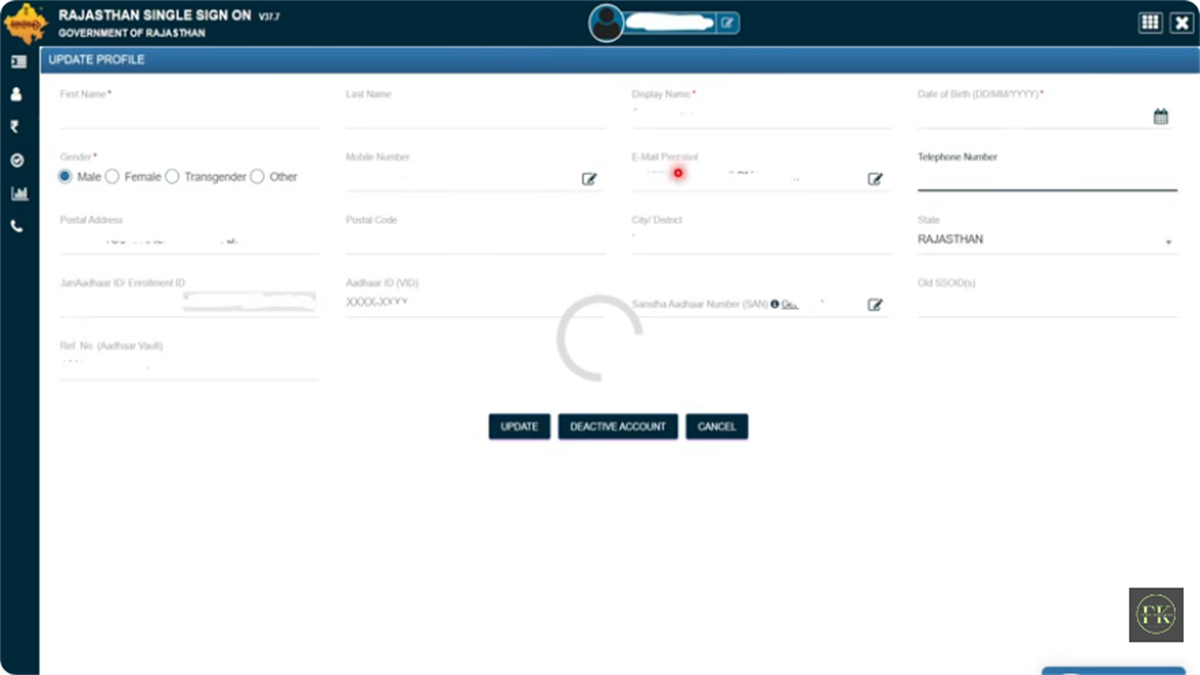
SSO ID profile update for duplicate account checks
Step by step

Merge in 4 steps

Log in to the account you want to close

Sign in using the duplicate citizen ID you want to deactivate, not the primary ID you're keeping.

Open Edit Profile

Click the pencil (Edit Profile) icon at the top-right of your dashboard.

Click "Deactivate Account" → choose Merge

Select the Merge option from the popup. Double-check you're inside the account you want to close.

Verify OTP and enter your primary SSO ID

Verify by OTP, then enter the SSO ID you're keeping. All data transfers and the duplicate is permanently closed.

The direction matters. You must be logged in to the ID you're closing. If you merge the wrong way, you'll lose access to your primary account's setup.
The stakes

Why duplicates cause problems

Your Aadhaar can only be linked to one SSO ID. When two accounts exist, the recruitment and scholarship portals can't verify which is authoritative, so applications get blocked or rejected. Merging resolves this by consolidating everything under a single verified identity.

After merging, log in with your kept ID and your OTR, scholarship, and Jan Aadhaar links all work normally again.
Common questions

Merge FAQ

Will I lose any data when I merge?

No. The merge transfers your profile, linked services, and history to the ID you keep before closing the duplicate. Nothing is deleted.

Which account do I log in to, the one I keep or the one I close?

Log in to the one you want to close. The merge flow then asks for the primary ID you're keeping and transfers data toward it.

I'm a government employee with two IDs. What do I keep?

Keep your Government Employee ID and merge the citizen duplicate into it. Never deactivate the employee account.

Can I undo a merge?

A completed merge permanently closes the duplicate, so it can't be reversed. Confirm you're on the correct account before the final step.

I only remember one of my two IDs. What now?

Recover the forgotten one first, by SMS or the portal, then merge. See the recovery guide.

Keep going

Related guides

Free tools

Get your documents ready first

Registration and recruitment forms need a correctly sized photo. Prep it here before you start, all on your device.